How to Automatically Generate .SRT Subtitles for Video (CapCut & Premiere)
Master automated .SRT and .VTT subtitle generation for TikTok, YouTube Shorts, Reels, and podcasts. Save hours of video editing time with AI.
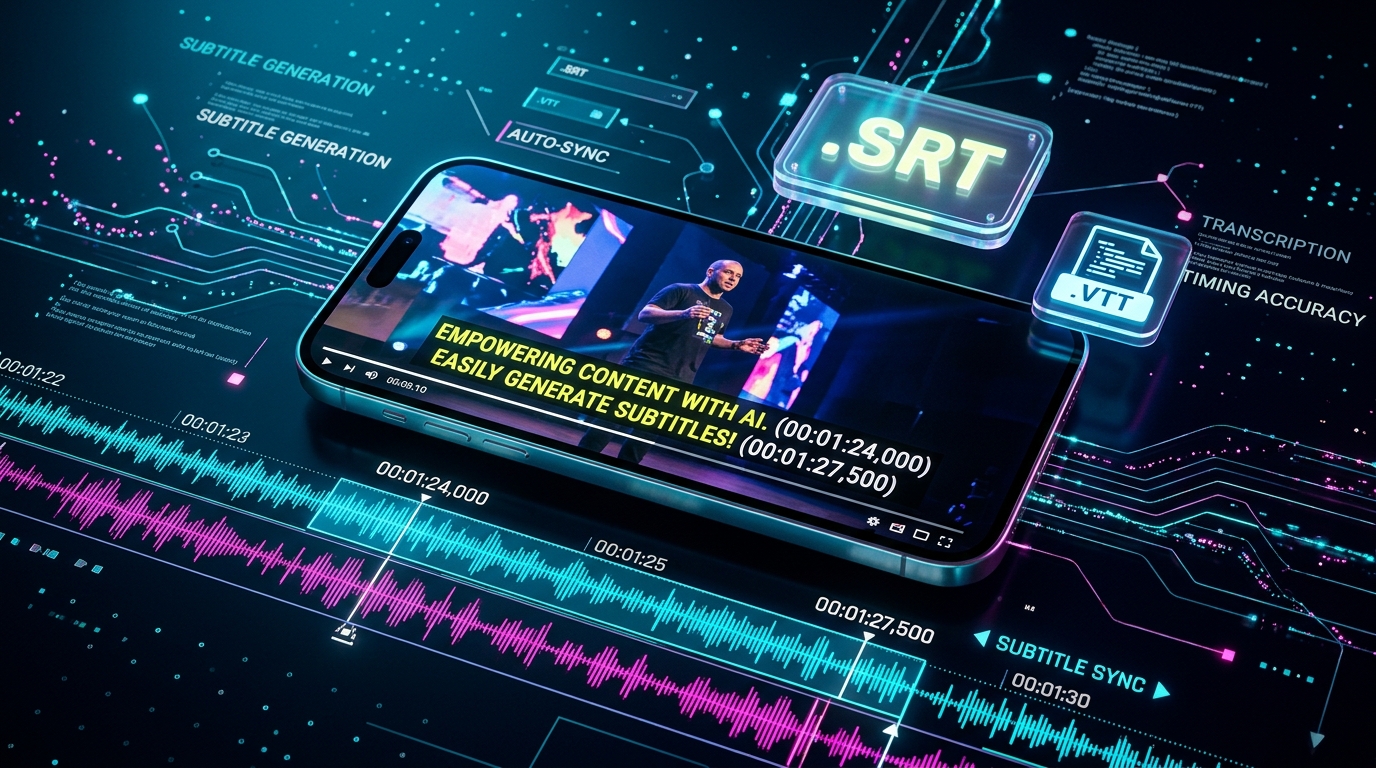
Subtitles are no longer optional in modern video marketing. On TikTok, Instagram Reels, and YouTube Shorts, more than 80% of audiences browse with their sound muted. If your video does not display clear, synchronized captions from the very first second, viewers will swipe away before hearing your message.
However, manually creating subtitle tracks—typing out sentences and setting start/end timestamps down to milliseconds—is one of the most tedious tasks in post-production.
In this tutorial, you will learn how to generate flawless .SRT subtitle files automatically using AI and import them directly into CapCut, Adobe Premiere Pro, and DaVinci Resolve.
What is an .SRT Subtitle File?
An .SRT (SubRip Subtitle) file is the universal plain-text file format used across all major video editing suites and streaming platforms. It contains:
- A sequential caption number (e.g.,
1,2,3) - Start and End Timecodes accurate to milliseconds (
00:00:01,250 --> 00:00:04,500) - The exact spoken dialogue on corresponding lines
Because it is lightweight and universally compatible, you can edit formatting, fonts, and animation presets across your favorite video tools without rendering burned-in text beforehand.
Step-by-Step: Generate Subtitles in Seconds with Peguei o Texto
Step 1: Provide Your Video or Audio
Open Peguei o Texto Subtitle Generator. You can either:
- Paste a link: YouTube, TikTok, Instagram Reels, or Vimeo URL.
- Upload an audio/video file: Drop your
.MP4,.MOV,.MP3, or.WAVfile directly into the browser.
Step 2: Let the AI Transcribe and Sync Timestamps
Click Generate Subtitles. Peguei o Texto uses advanced acoustic alignment algorithms to synchronize every syllable with millisecond timecodes.
Step 3: Download the .SRT File
Under the Subtitles (.SRT) tab, preview your synchronized timecodes and click Export .SRT. The file downloads instantly to your device.
How to Import .SRT into CapCut (Mobile & Desktop)
CapCut is the top mobile and desktop editor for short-form viral content. Here is how to load your .SRT file:
On Desktop:
- Open your project in CapCut.
- In the top-left toolbar, click Text > Auto captions / Local captions.
- Select Import Subtitle and browse for your downloaded
.srtfile. - CapCut will automatically lay down the captions on your timeline, perfectly aligned to your speech.
- Highlight all captions and apply popular animated styles, stroke outlines, and dynamic brand colors.
How to Import .SRT into Adobe Premiere Pro
- Launch Premiere Pro and load your active timeline sequence.
- Go to File > Import (or drag the
.srtfile into your Project panel). - Drag the
.srtasset directly onto an empty track above your video in the Timeline. - Premiere Pro will open the Essential Graphics & Captions panel, allowing you to customize font family, size, background tracking, and safe margin zones across all dialogue simultaneously.
Pro Tips for High-Retention Subtitles
- Keep It Short: Limit captions to 1–2 lines per screen (maximum 4 to 7 words) so viewers can absorb sentences quickly.
- High-Contrast Colors: Use vibrant yellow, cyan, or crisp white text over a subtle black drop shadow to ensure readability on any video background.
- Highlight Trigger Words: Use CapCut or Premiere's text animator to highlight keywords like "Mistake", "Free", or "Secret" in contrasting colors.
Start Generating Subtitles Now
Stop wasting hours manually listening, pausing, and typing timestamps. Generate your first synced .SRT track for free with Peguei o Texto and elevate your short-form video workflow today.
Transcribe your first audio or video in seconds
Upload MP3, WAV, Zoom recordings or paste any YouTube link. Test our AI with 5 free minutes and experience studio-grade accuracy!
Start Free on Peguei o TextoRelated Articles
Continue reading other guides in this category