What Is an SRT File: How to Open, Edit, and Add Subtitles (2026)
Understand what an SRT (SubRip) file is, how to open it in Notepad or mobile, how to edit subtitle timestamps, and how to add subtitles to videos using AI.
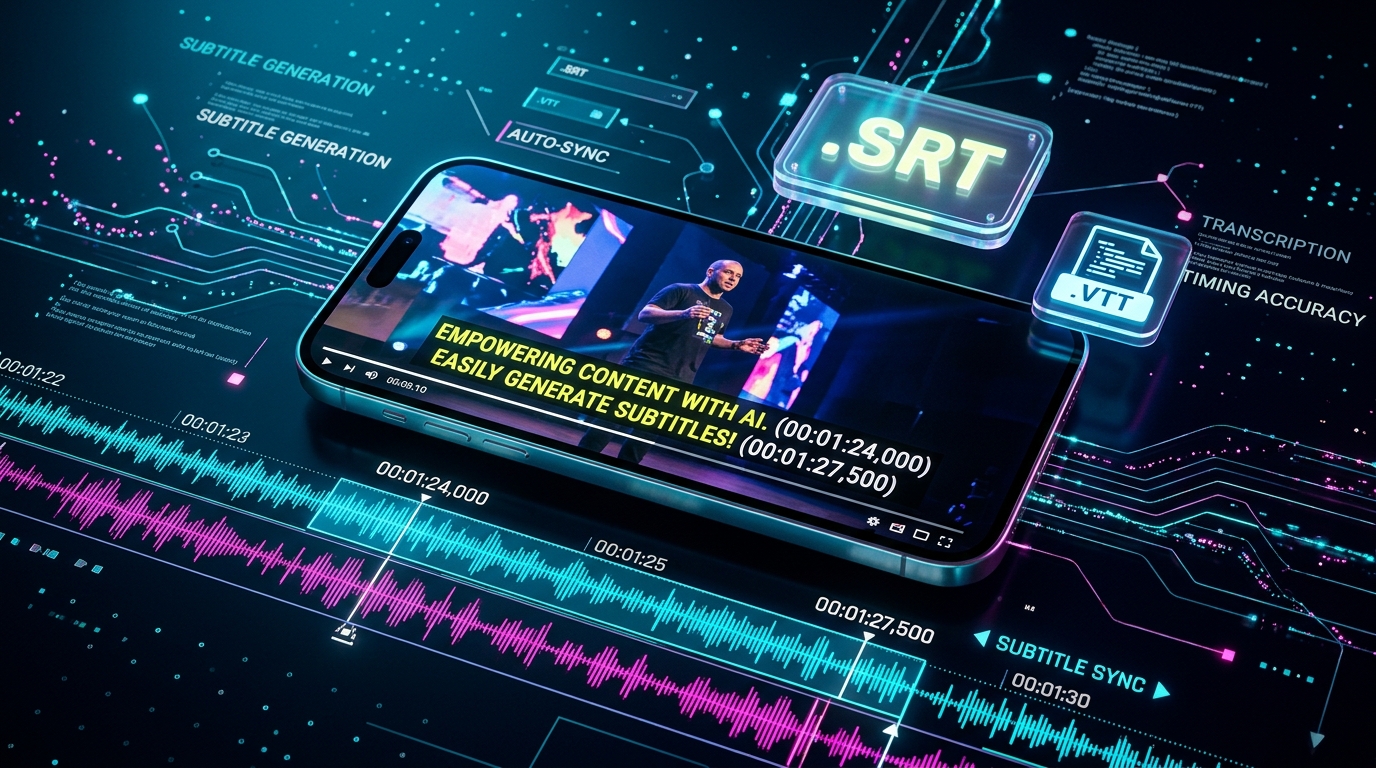
Whether you have downloaded an international movie, uploaded a tutorial to YouTube, or edited a social media video for TikTok or Instagram Reels, you have encountered files ending in the .srt extension.
Despite being the most recognized subtitle format on earth, many creators and viewers still ask fundamental questions: What does SRT stand for? How do I open and edit an SRT file on my computer or phone? And how do I attach it to a video without complex software?
In this updated 2026 guide, you will learn how the SRT format works under the hood, how to edit it with basic text editors, and how to generate synchronized SRT subtitle files automatically in seconds using Artificial Intelligence.
What Is an SRT File (SubRip Subtitle)?
Direct Definition: An SRT (SubRip Subtitle) file is a standardized plain-text file that stores sequential video caption data alongside precise timecodes. It tells media players and video platforms when a subtitle line should appear on screen, how long it should stay visible, and what text should be shown.
Originally popularized by the open-source SubRip tool used to extract captions from DVDs, the .srt format is now the universal subtitle standard supported by YouTube, Netflix, Vimeo, VLC Media Player, Adobe Premiere Pro, DaVinci Resolve, and CapCut.
Anatomy of an SRT File: How It Looks Inside
An .srt file contains no binary code, video footage, or images—it is 100% human-readable plain text. If you open any SRT file in a text editor, you will see numbered blocks structured like this:
1
00:00:01,500 --> 00:00:04,200
Welcome to this video tutorial!

2
00:00:04,350 --> 00:00:07,800
Today we are going to learn how to generate subtitles automatically with AI.

3
00:00:08,100 --> 00:00:11,600
The process takes less than a minute and works on any video format.
Breakdown of Each Element:
- Subtitle Number: An incrementing integer identifying the sequential order (1, 2, 3...).
- Timestamps: The start and end time indicating when text appears and disappears in the format:
HOURS:MINUTES:SECONDS,MILLISECONDS --> HOURS:MINUTES:SECONDS,MILLISECONDS
Note: In standard SRT format, milliseconds are separated by a comma (,). - Subtitle Text: The actual spoken dialogue displayed on screen (can be one or two lines).
- Blank Line: An empty line separating one subtitle block from the next.
Comparison Table: SRT vs. WebVTT vs. ASS
| Format | Extension | Best Used For | Styling Support | Compatibility |
|---|---|---|---|---|
| SubRip (SRT) | .srt |
YouTube, VLC, media players, editors | ❌ Basic (rarely supports colors) | Universal (100% of platforms) |
| WebVTT | .vtt |
HTML5 <video> tags, modern browsers |
⚠️ Moderate (supports CSS styling) | High on the web |
| Advanced SubStation Alpha | .ass |
Anime fansubs, custom karaoke effects | ✅ Advanced (fonts, positions, glows) | Medium (specialized players) |
Hardcoded (Burned-in) vs. Soft Subtitles (Closed Captions)
When utilizing an SRT file, understand the difference between the two main delivery modes:
- Soft Subtitles (Closed Captions / External SRT): The video file and the
.srtfile are separate. Viewers can toggle captions on or off using the[CC]button in YouTube, Netflix, or VLC. This is ideal for SEO, multilingual translation, and accessibility. - Hardcoded (Burned-in Subtitles): The subtitle text is permanently rendered onto the video's video pixels during editing. Viewers cannot turn it off. This is the required format for Instagram Reels, TikTok, and YouTube Shorts, where up to 80% of users watch with sound muted.
How to Open and Edit an SRT File
Because SRT files are plain text, you do not need expensive software:
On Windows:
- Right-click the
.srtfile; - Select "Open with" > Notepad;
- Edit the dialogue or adjust timestamps;
- Click File > Save (ensure the encoding is set to UTF-8 to avoid broken accent marks).
On Mac:
- Open the native TextEdit app;
- In Preferences > Open and Save, ensure "Plain text" is selected;
- Open the
.srtfile and edit as needed.
On Mobile (iOS or Android):
Open the file in any text viewer, notes app, or cloud editor.
How to Add an SRT File to Your Video
1. In VLC Media Player
- Automatic Method: Name the video file (e.g.,
video.mp4) and the subtitle file (e.g.,video.srt) identically and place them in the same folder. VLC will load the subtitles automatically upon playback! - Manual Method: While the video is playing in VLC, go to the top menu: Subtitle > Add Subtitle File... and select your
.srt.
2. In YouTube Studio
- Log into YouTube Studio and open your video details;
- Click Subtitles in the left sidebar;
- Click Add Language;
- Under the Subtitles column, click Add and select Upload file > With timing;
- Select your
.srtfile and publish.
3. In CapCut or Premiere Pro
- In CapCut: Go to Text > Auto captions / Local captions, import your
.srt, and customize font animations with a single click. - In Adobe Premiere Pro: Drag the
.srtfile into your Project panel and drop it directly onto the timeline above your video track.
How to Generate an SRT Subtitle File Automatically with AI
Creating SRT files manually with a stopwatch used to take hours. Today, you can automate subtitle generation with Peguei o Texto:
- Go to our dedicated Generate SRT Subtitles tool;
- Upload your video (MP4, MOV) or audio file (MP3, WAV, M4A), or paste a video link;
- Our neural speech recognition engine analyzes speech cadence and calculates millisecond-accurate start and end points;
- Download your synchronized
.srtfile with 1 click!
Frequently Asked Questions (FAQ)
Does an SRT file affect the visual quality of my video?
No. Because an SRT file is simply a text document, it has zero impact on video resolution, bitrate, or visual compression.
Why do special characters appear broken (like é)?
This occurs when an SRT file was saved with legacy ANSI encoding. To fix it, open the file in Notepad, click File > Save As, change the encoding dropdown at the bottom to UTF-8, and save.
Can I convert an SRT file into a clean plain text transcript?
Yes! Our Audio Transcription tool allows you to export clean paragraph text without timestamps for reading or article drafting.
Conclusion: Master Subtitles for Greater Video Impact
The SRT format remains the most dependable, lightweight, and versatile captioning standard in digital media. Using accurate subtitles boosts video watch time, aids international viewers, and dramatically improves search visibility.
Ready to save hours of manual typing? Generate your subtitles instantly with Generate SRT Subtitles on Peguei o Texto!
Transcribe your first audio or video in seconds
Upload MP3, WAV, Zoom recordings or paste any YouTube link. Test our AI with 5 free minutes and experience studio-grade accuracy!
Start Free on Peguei o TextoRelated Articles
Continue reading other guides in this category